Education
Never Stop Learning
Unlock your potential with Classcipe's Professional Development function. Browse our FAQ page to discover how we can help you achieve your career goals and maximize your potential in the workplace.
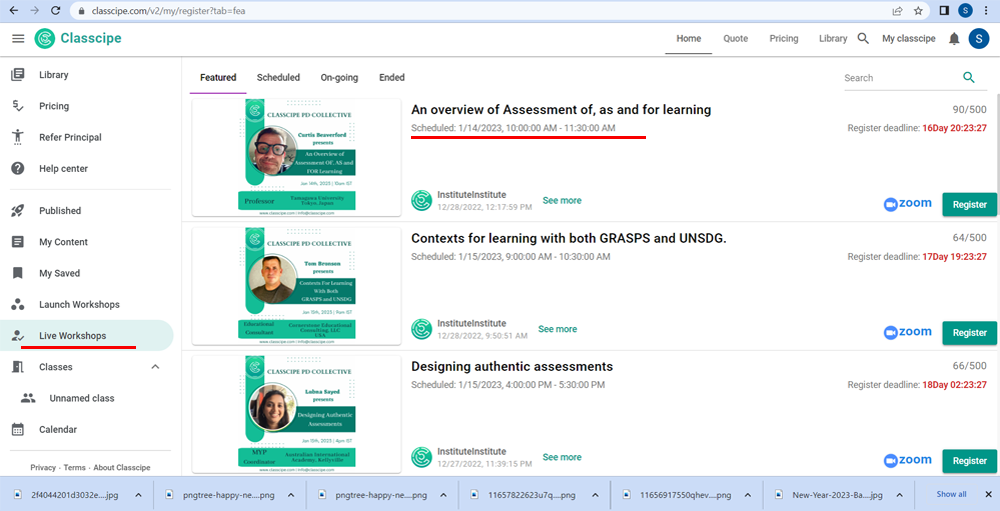
Q1. The PD workshop/ session time is mentioned in Indian Standard Time. How do I know the PD session timing according to my local time zone?
A
nswer: In the Classcipe platform, the PD workshop/ session timing will be shown as per your logical time zone. Please see the image for reference.
Q2. How do I log into my school account? My landing page shows a personal account.
Ans. You will receive an invitation email from Classcipe to join your school on the Classcipe platform. You need to click on the link shared in the email for the Classcipe web page to open. Next, sign in to Classcipe using your gmail account. After that click on the notification icon next to your profile at the top right corner. There you will see a message inviting you to join your school. Open the message and click on join. You will now observe two options under your profile, personal and xxx school. Select the xxx school to work in your school environment.
Watch video
Q3. Why is the Classcipe add-on taking a lot of time to open?
Ans. Please confirm that your Chrome profile is the same as your email address being used to create your interactive Google slide.
Watch video
Q4. Why do I have to share my drive with Classcipe? I wouldn’t like to make my drive accessible to Classcipe.
Ans. This notification is sent by Google for all its add-ons. It is because add-on apps need access to your files saved in your drive in order to allow you to use the apps' different features/ functions. As a third party app, we cannot by any means access your content and files in your drive. Only the files you selectCreate Google Slides in PD Content to be saved to Classcipe are recorded there as your own content.
Q5. If I create my PD presentation on the Classcipe platform, will my participants be able to view all my slides in my presentation?
Ans. Only the cover image of your PD content and the first three slides of your PD presentation will be visible to the participants/ registrants under preview.
Q6. How can I link my zoom account to Classcipe?
Ans.
There are two navigation options to link your zoom account to the Classcipe. Please watch this video demonstration of how to connect ZOOM to Classcipe.
Watch video
Q7. How can I make my PD session more interesting and at the same time allow all my participants to share their ideas and experiences with others?
Ans.
Classcipe has its own Google add-on tool that can be integrated with Google slide presentation to make it interactive. Please watch this video demonstrating how to create Google Slides in PD content
on the Classcipe platform.
Watch video
Q8. How can I schedule an hour PD session when I hold a Zoom basic account?
Ans. You can schedule two back to back PD sessions on the Classcipe platform. Please watch this video with a detailed explanation about how to schedule your PD session for more than 40 mins if you hold a basic zoom account.
Watch video
Q9. I have scheduled multiple sessions inadvertently on Live workshops. How do I delete the additional sessions of my workshop on Classcipe?
Ans. In such a scenario you need to go to the Launch Workshop tab of your respective account (Personal or that of Network/ Institute/ School) and click on the three dots next to the Enter workshop button, archive. Next, go to the Archived Tab at the top and then delete using the three dots. Please watch this video representation.
Watch video
Q10. How can I find out the number of registrants to my scheduled workshop/ PD session on Classcipe?
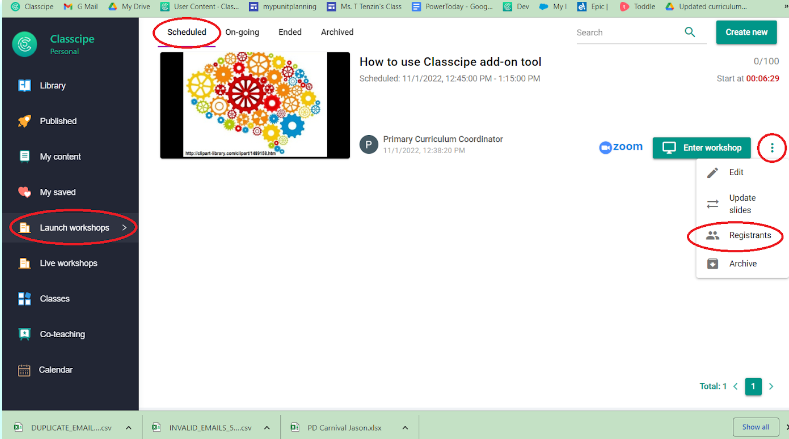
Ans. To find the registrants to your PD workshop/ session, go to Launch workshops tab - Scheduled - click on the three dots next to the Enter workshop button and select the registrants option. A new window will pop out showing the details of the people who have registered to attend your workshop.
Q11. I had scheduled my PD session on Classcipe and it is visible under the Live workshops tab. However, I have now added some more slides to my presentation and also made certain edits. Will it be updated to my scheduled PD session directly? If not, how can I update slides to my scheduled PD session?
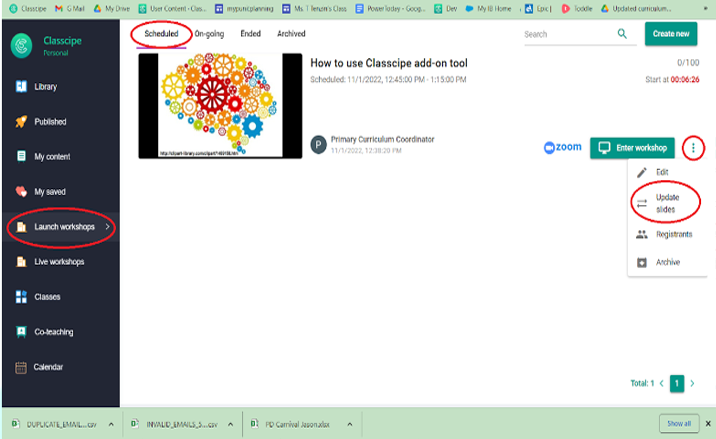
Ans. Any updates made to your PD content/ slide presentation will not be directly reflected on your scheduled PD session. However, there is a provision to update slides so that the changes can be reflected in your scheduled PD session. You will have to go to the Launch workshops tab and then click on the three dots next to the Enter workshop button, click update slides. Image is for reference.
Watch video
Q12. How can I make the presentation available to my participants after the live PD session?
Ans.
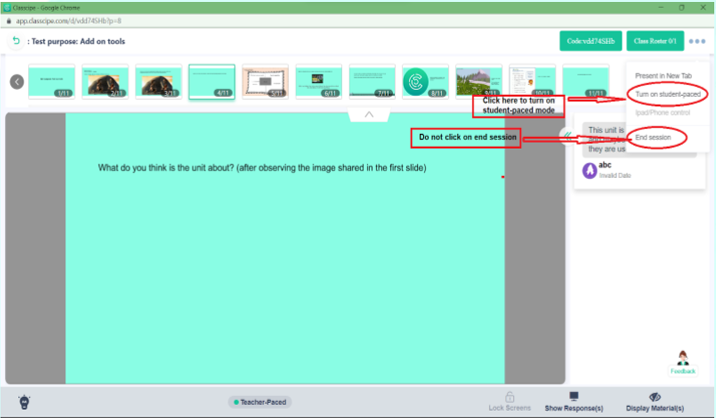
Once the live PD session progresses, it automatically moves to the ‘Ongoing’ tab. (Live workshop - Ongoing). The facilitator will not end the session and turn the Student mode ‘ON’. This will enable the participant to access the presentation after the live session is over. He/ she will also be able to submit his/ her work on the designated slide which has the Multimedia add-on interactive
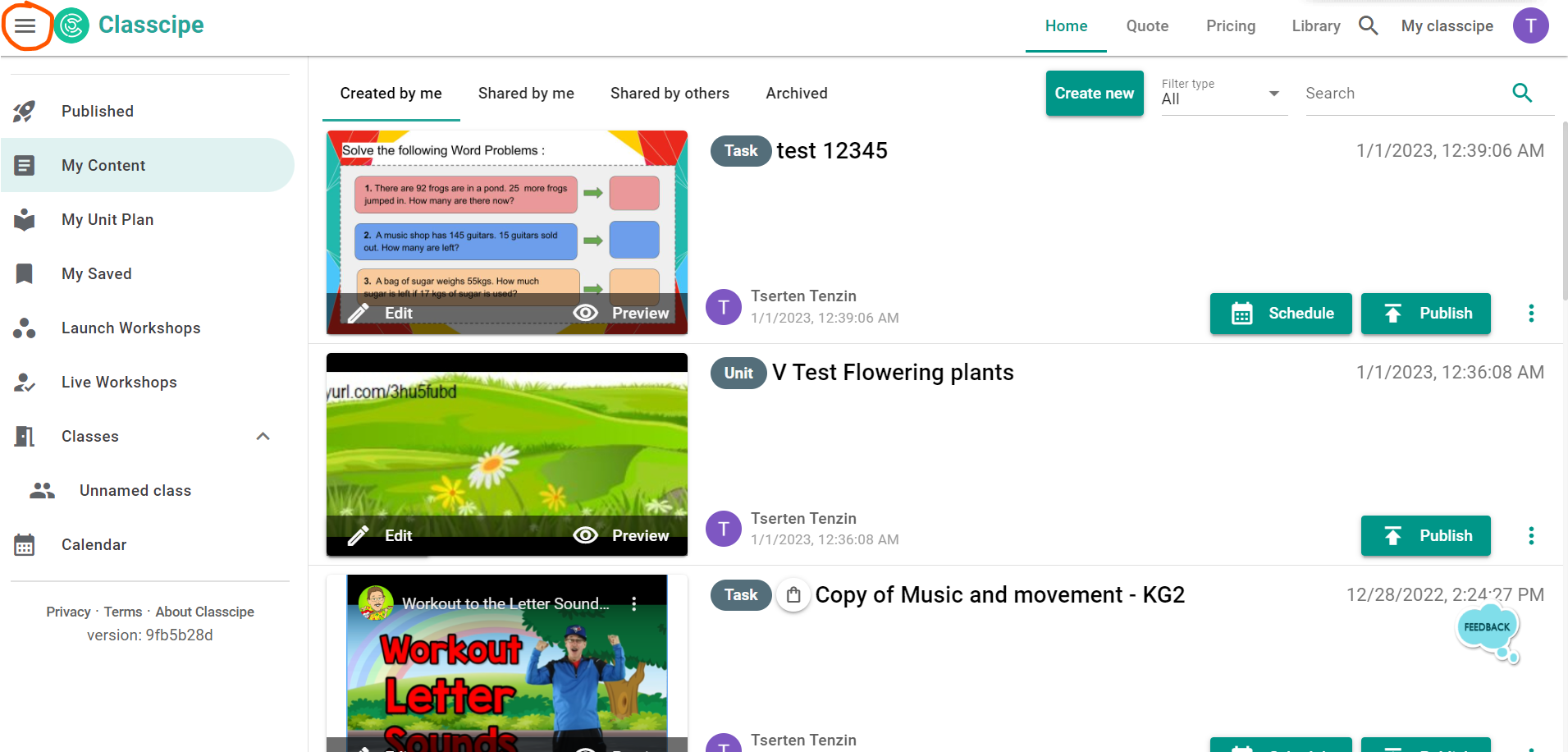
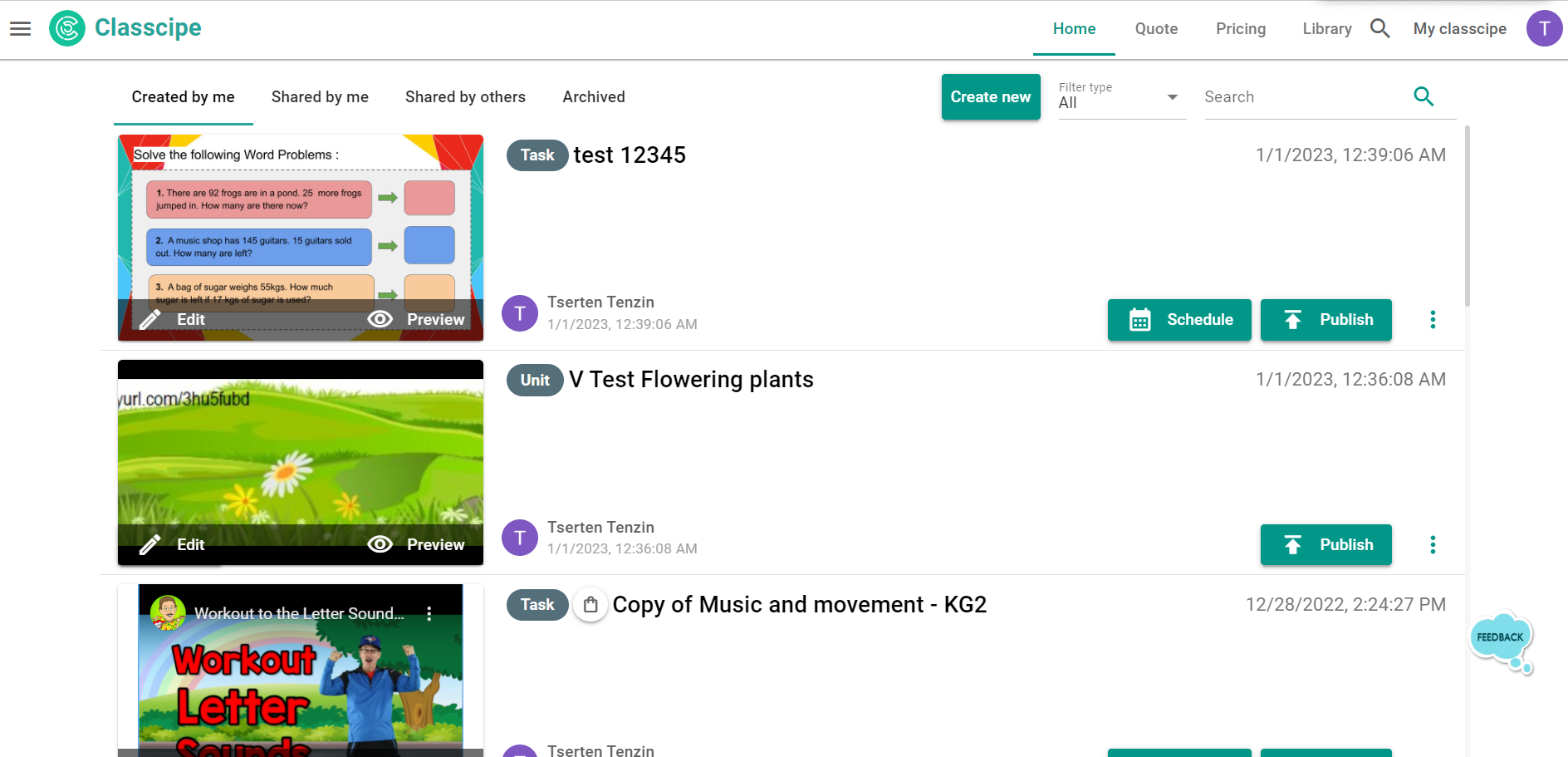
Q13. I have logged into www.classcipe.com. However, my landing page does not show the Menu on the left.
Ans. Take your cursor to the Classcipe logo at the top left corner. Click on the Hamburger menu next to the Classcipe logo to open the Left Menu bar. Refer to images shared below.
Q14. I have attended a PD workshop/ session on the Classcipe platform. When will I get the attendance certificate?
Ans. The attendance certificate will be issued within 14 working days after attending the online PD session/ workshop uninterrupted from start till the end. However, in order to get the attendance certificate, educator participants have to register the workshop on the Classcipe platform. On the day of the workshop, they have to join the workshop via Classcipe classroom (Go to Live workshop - Scheduled - Enter workshop) OR use the PD classroom code link shared by the facilitator to attend the PD workshop/ session. Their workshop attendance will be automatically recorded by the system and certificates will be issued within 14 working days.
Please note that the certificate of participation will be issued to those who have submitted the post session task/ assignment, if any, on the Classcipe platform. For any queries regarding PD certificates, feel free to contact This email address is being protected from spambots. You need JavaScript enabled to view it..
Q15. Why can’t workshop facilitators share the zoom link directly with participants?
Ans.
It is generally observed that participants attend the workshops not only for their professional growth, but also for the validation of having invested in themselves by attending PD workshops/ sessions to develop/ enhance their teaching learning skills. Thus, there is a requirement of issuing a participation certificate to all the workshop attendees.
The classroom link generated for the PD session/ workshop automatically records workshop attendance. It, thus, enables the system to issue hassle-free participation certificates to each of the workshop attendees. The recording of the workshop attendees doesn’t happen if only the zoom link is shared directly to the participants.
Facilitators are requested to take precaution while sharing their paid PD workshop/ session classroom links. They may, however, share the classroom link to invite participants at their own discretion (like, free tickets offered, etc.), other than sharing that link with the paid registrants.
Q16. How do I register and join a PD workshop to be facilitated on the Classcipe platform?
Ans. Click on the registration link shared on Classcipe social media handles and register for the PD workshop. Alternatively, you can log into www.classcipe.com and go to Live Workshops to register for the PD workshops appearing under Featured section. For easy navigation, do watch the video shared below.
Watch video
This email address is being protected from spambots. You need JavaScript enabled to view it.